

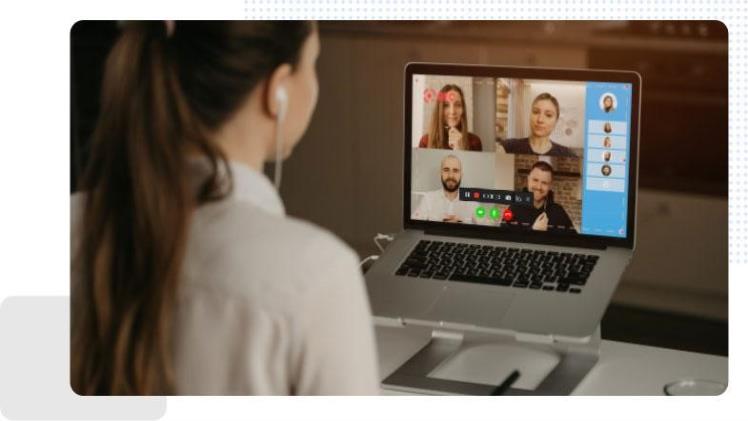
In an increasingly virtual world, Zoom has become an indispensable tool for connecting people across distances and facilitating seamless communication. From business conferences to online classrooms and virtual gatherings, Zoom meetings have revolutionized the way we interact. However, ensuring accessibility for all participants is crucial, especially for individuals with hearing impairments or those in non-native language environments. This is where subtitles or captions play a vital role.
Adding accurate and well-timed subtitles to your Zoom meeting recordings not only makes the content inclusive but also enhances comprehension and engagement. In this article, we will guide you through the steps to effortlessly add subtitles or captions to your Zoom meeting recordings, making your virtual events more inclusive and accessible to a broader audience.
Privacy Concerns When Using Third-party Screen Recording Software
When using third-party screen recording software, it’s essential to be mindful of privacy and security concerns. While reputable screen recording software like iTop Screen Recorder usually ensures data security, it’s essential to review the software’s privacy policy and terms of use before installation. Additionally, make sure that any sensitive or confidential information shared during the Zoom meeting is handled appropriately and not inadvertently recorded.
If you are part of an organization, check with your IT department or administrators to ensure compliance with data protection policies and guidelines before using third-party recording software. Alternatively, Zoom offers built-in recording features that can be used in line with the platform’s privacy and security protocols.
How to Add Subtitles to Your Zoom Recordings
With the increasing demand for virtual meetings, Zoom has become an essential platform for remote communication. To make your Zoom meetings more accessible to all participants, especially those with hearing impairments or in non-native language settings, adding subtitles or captions to your meeting recordings is crucial. In this step-by-step guide, we’ll show you how to effortlessly add subtitles to your Zoom meeting recordings using an auto-caption generator.
1) Download Your Zoom Meeting Recording as an Account Owner or Admin
Before you can start adding subtitles, you need to ensure you have access to the Zoom meeting recording. If you are the account owner or an admin, follow these steps to download the recording:
- Log in to your Zoom account on the Zoom website.
- Navigate to the “My Recordings” section.
- Locate the specific meeting recording you want to add subtitles to and click on it to access the details.
- Click the “Download” option to save the recording to your local device.
2) How to Record Zoom Meetings and Download Them If You’re Not the Administrator
How to record Zoom meeting if you are not the administrator and don’t have access to the Zoom meeting recordings? don’t worry! You can still record Zoom meetings and have access to the recordings using third-party screen recording software like iTop Screen Recorder. Here’s how:
- Go to the iTop Screen Recorder website and download the software on your computer.
- Install and launch the iTop Screen Recorder application.
- Before starting your Zoom meeting, open iTop Screen Recorder and adjust the recording area to cover the Zoom meeting window.
- Turn on the “System Sound” option to capture audio from the Zoom meeting.
- Optionally, enable the “Microphone” option if you want to include your audio in the recording.
- Start recording by clicking on the “REC” button in iTop Screen Recorder.
- Conduct your Zoom meeting as usual, and the iTop Screen Recorder will capture the video and audio.
Once your Zoom meeting is complete, click on the “Stop” button in iTop Screen Recorder to end the recording. The software will automatically save the recording to your chosen location on your computer. With your Zoom meeting recording ready, you can now proceed to add subtitles or captions using an auto-caption generator.
There are several online tools and software available that can automatically generate accurate captions for your video content. By following the steps in this guide, you can ensure that your Zoom meeting recordings are more inclusive, allowing participants to follow along effortlessly, regardless of language barriers or hearing impairments.
Edit the Auto-generated Subtitles or Captions for Accuracy
Yes, you can edit the auto-generated subtitles or captions to ensure accuracy and improve their quality. While auto-caption generators have come a long way in providing reasonably accurate captions, they may still make errors, especially with technical terms, names, or uncommon phrases. Most video editing software or dedicated captioning tools allow you to manually edit the captions. You can correct any mistakes, adjust the timing, and make sure the captions precisely match the spoken content in your Zoom meeting recordings.
The Bottom Line
In conclusion, adding subtitles or captions to your Zoom meeting recordings is a simple yet powerful way to make your virtual events more inclusive and accessible to a wider audience. By ensuring that participants with hearing impairments or those in non-native language environments can follow along with ease, you enhance the overall experience and foster better communication. In this article, we discussed how to add subtitles to your Zoom meeting recordings using an auto-caption generator. As an account owner or admin, you can download the meeting recordings directly from Zoom’s website. If you don’t have access to the recordings as an administrator, third-party screen recording software like iTop Screen Recorder can be used to capture the Zoom meetings for later captioning.
By following these steps and being considerate of accessibility needs, you can create more inclusive virtual environments and ensure that your Zoom meeting recordings are accessible to a diverse audience. Embracing accessibility in our digital interactions not only demonstrates empathy and inclusivity but also enriches the overall quality and impact of virtual engagements.
